How do you collect a Standard Single Axis Datalog?
If a single axis of the robot is not operating correctly, such as vibrating or making noise during a motion, it is often very helpful to manually collect a "Standard Tuning Datalog" when the unusual behavior is occurring. This type of datalog collects the axis' position and velocity errors, the commanded total motor torque, the computed PID feedback torques, the feedward torques, and the available motor bus voltage. This data collection is performed in the background without altering the operation of the system and provides important information on the real-time operation of the axis and the frequency of any disturbances.
The following describes how to manually collect such a datalog for a single axis.
Step 1: Specify the Axis and Variables to Collect
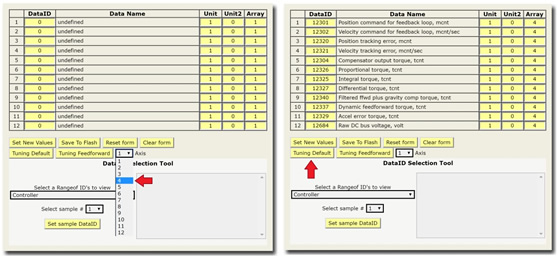
Using the web interface, navigate to Admin > Utilities > Datalogger > Step 1: Specify variables. Select the axis you would like to log data for, then click “Tuning Default”.
Step 2: Define Triggers and Data Collection Rate/Duration
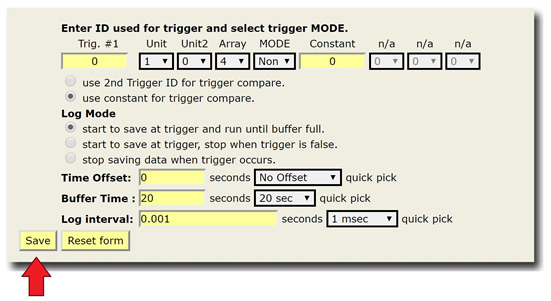
Since you’ll be starting the log manually, set “Trig. #1” to 0; “MODE” to “None; and “Time Offset” to 0, as in the screen shot below. Choose a buffer time that will last at least as long as the motion you are trying to capture, and chose a log interval that will provide adequate resolution to capture the frequencies you want to see. Typically, 10-15 seconds and 0.5-4.0 milliseconds (respectively) is sufficient. Usually, an Interval of 1 milliseconds should be used for vibrations and noise and 2-4 milliseconds can be used for lower frequency events.
Step 3: Collect/Display Data
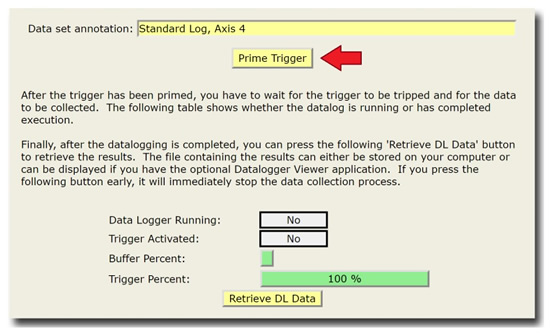
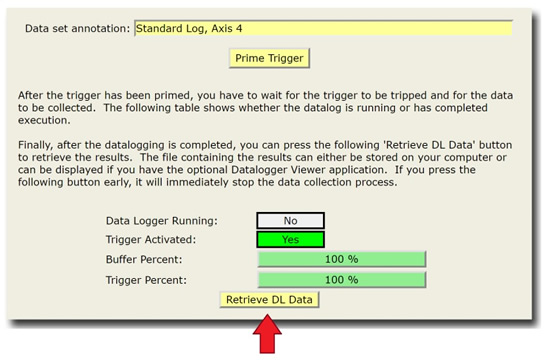
Start the motion you want to capture, and then click “Prime Trigger” to start the data collection. Once the buffer is full, click “Retrieve DL Data” to retrieve the data. When prompted, click “Save” to save the file to your hard drive.
NOTE: when Google Chrome is used with older versions of GPL, you will not be prompted to save a file, and the plaintext of the data will begin to display. After the full text downloads (the last line will be “.End”), you can copy this to Notepad and save with a “.pdl” extension. Or, you can open the web interface in Microsoft Internet Explorer/Edge or Mozilla Firefox, skip to Step 3, and click “Retrieve DL Data” to download the file directly.