Robots normally have tooling mounted to their final axis to handle parts or other materials. The tooling is often a simple pneumatic gripper (end-effector) whose center line is collinear with the final axis of the robot. In other situations, the tooling might be rotated or offset from the robot's final axis or there might be multiple grippers or multiple types of other tooling. As an example, in the Guidance Dispense hardware package, two syringe heads can be simultaneously mounted on the end of the PrecisePlace's Z-axis to permit two types of fluid to be dispensed.
To compensate the robot's tool mounting flange position and orientation for the dimensions of its tooling, each robot in GPL has a Tool definition. The Tool's orientation and dimensions are automatically taken into account by the robot's Kinematic Module.
Once the Tool is properly defined, the operator can easily rotate about the tool tip while maintaining a fixed position in manual control or a motion program can rotate the tool orientation while still moving the tool tip along a straight-line path. You can also teach a path with one tool and then replay the same path using a different tool or a different size of tool with the Kinematic Module automatically compensating for the tool differences.
A. Explicitly Setting the Tool Orientation and Dimensions
Tool definitions can include all 6 degrees-of-freedom (X, Y, Z, Yaw, Pitch, Roll). As a convenience, each time the controller is restarted, the Tool for each robot is automatically set based upon the value of the following Parameter Database value.
| Parameter Database ID | Parameter Name | Description |
|---|---|---|
|
16051 |
Tool set at restart |
When the controller is restarted, the robot's Tool transformation is automatically set to this initial value. The elements in this database value are the standard Euler angles for a transformation: X, Y, Z, Yaw, Pitch and Roll. This startup Tool value can be recalled via the Robot.RestartTool property. |
Once the system has started, the Tool can be set and read via the Robot.Tool property. In the following example, a simple Tool that only has an offset of 110mm along the Z-axis of the final axis of the robot is set.
Dim tool1 As New Location
Dim tool2 As Location
Robot.Attached = 1
tool1.XYZ(0,0,110,0,0,0)     ' Define tool dimensions
Robot.Tool = tool1          ' Set tool
tool2 = Robot.Tool()        ' Read back tool dimensions
B. Sample Tool Definitions
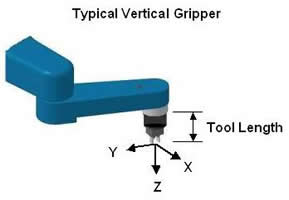
The most common type of tool (gripper) has its fingers parallel to the last axis of rotation of the robot and has a fixed offset from the robot's tool mounting flange to the gripper pick-up point.
NOTE: The following illustrates a process for robots that have a final rotational "Theta" axis and are controlled by a kinematic module that has a default tool Z-axis aligned with the Theta axis.
This example directly applies to robots that are controlled by modules such as the SCARA or 5/6-Axis Articulated Robot Modules. This example does not directly apply to robots that are controlled by modules where the default tool Z-axis does not align with the Theta axis such as the RPRR and PRRR Robot Modules. So, it does not directly apply to the PreciseFlex™ 400 robot.
In this case, the Z-axis of the tool is collinear with the robot's last axis of rotation. The tool's Y-axis points from one finger to the other. The direction of the tool's Z-axis is important because this defines the direction in which the Location's ZClearance property is interpreted and therefore the direction that the robot will approach and depart from locations during Move.Approach steps. The "Tool Length" is important if you wish to swap in different length tools (or the tool wears down) and you don't wish to re-teach locations. Also, if the robot can rotate about the tool tip, the point of rotation is defined by the Tool Length.
The Location value utilized to define such a tool is as follows:
Location.XYZValue(0, 0, Tool_Length, 0, 0 ,0)
Another common means of mounting a tool is to orient the fingers so they are rotated 90 degrees with respect to the tool mounting flange. This arrangement works well if the robot must load and unload parts from a press, Semiconductor tool port, or a vertical wall of part nests.
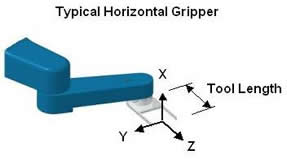
In this case, the tool's Z-axis is horizontal and all Move.Approach motions are in a horizontal plane. The Tool Length defines the distance from the center of rotation of the robot's last axis to the gripper's pick-up point.
The Location value utilized to define such a tool is as follows:
Location.XYZValue(Tool_Length, 0, 0 ,0, 90, 0)
C. Determining Dimensions of a Tool With X and Y Offsets
For Tools that have an offset in X and/or Y with respect to the robot's tool mounting flange, the following procedure can be utilized to experimentally determining the dimensions to be entered into the Tool definition.
- Select an arbitrary reference point that can be reached with the Tool in its normal orientation and can also be reached when the tool rotated 180 degrees.
- Set the current tool dimensions to zero, e.g. Robot.Tool = Location.XYZValue(0,0,0,0,0,0)
- Move the robot so that the tool tip accurately touches the selected reference point with the tool in its typical orientation. This is illustrated in the following picture on the left.
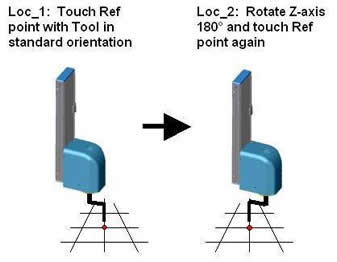
- Record this location as Loc_1.
- Rotate only the Tool Z axis exactly 180 degrees without disturbing the reference point.
- Without changing the World orientation of the tool (i.e. by moving only the X, Y, and Z position of the tool tip), move the robot to accurately touch the reference point again. This is illustrated in the above picture on the right.
- Record this location as Loc_2.
- Since this process does not compute the Z dimension of the tool, measure the Z dimension and store this as Z_Offset.
- Compute the Tool coordinate values using the following segment of GPL code.
Dim Offset As Location
Dim New_Tool As New Location
Offset = Loc_2.Inverse.Mul(Loc_1)
New_Tool.XYZ(Offset.X/2, Offset.Y/2, Z_Offset, 0, 0, 0)- Put the New_Tool into effect by using the Robot.Tool properly as shown in Section A or enter these values into the "Tool set at restart" (DataID 16051) and restart the controller to establish these dimensions as the default values.
The following is a simple, but complete GPL program that prompts the operator, records the locations, and computes the new Tool coordinates. This program includes the lines of code documented above.
Dim Offset As Location
Dim Loc_1 As New Location
Dim Loc_2 As New Location
Dim New_Tool As New Location
Dim Z_Offset As Double
Dim stg As String
Dim but As Integer

Robot.Tool = Location.XYZValue(0,0,0,0,0,0)

Controller.ShowDialog("Okay", "Enter Tool Z length", but, stg)
Z_Offset = CDbl(stg)                 ' Get Z dimension

Controller.ShowDialog("Okay", "Move to Loc_1 and Press Okay", but)
Loc_1.Here                           ' Get Loc_1
Controller.ShowDialog("Okay", "Move to Loc_2 and Press Okay", but)
Loc_2.Here                           ' Get Loc_2

Offset = Loc_2.Inverse.Mul(Loc_1)
New_Tool.XYZ(Offset.X/2, Offset.Y/2, Z_Offset, 0, 0, 0)

stg = CStr(New_Tool.X) & ", " & CStr(New_Tool.Y) & ", " & _
      CStr(New_Tool.Z) & ", " & CStr(New_Tool.Yaw) & ", " & _
      CStr(New_Tool.Pitch) & ", " & CStr(New_Tool.Roll)
Controller.ShowDialog("Done", "New Tool: " & stg, but)
D. Determining Dimension of a Complex or Second Tool
For robots that have two or more tools or a complex tool mounted on their last axis, the following procedure can be used. To compute the dimensions for the second Tool, this method relies upon the correct dimensions of the first Tool being initially set. In the case of a complex Tool, this method assumes that the initial Tool is set to represent the robot's tool mounting flange and that the mounting flange can accurately positioned and oriented with respect to a reference location.
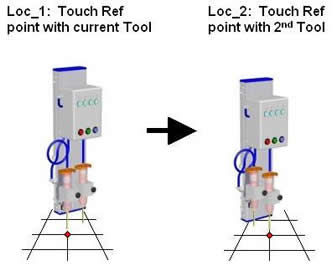
Dim New_Tool As Location
New_Tool = Loc_2.Mul(Robot.Tool().Inverse).Inverse.Mul(Loc_1)
The following is a simple, but complete GPL program that prompts the operator, records the locations, and computes the new Tool coordinates.
Dim New_Tool As Location
Dim Loc_1 As New Location
Dim Loc_2 As New Location
Dim stg As String
Dim but As Integer

Controller.ShowDialog("Okay", "Move 1st tool to reference and Press Okay", but)
Loc_1.Here                      ' Get Loc_1
Controller.ShowDialog("Okay", "Move 2nd tool to reference and Press Okay", but)
Loc_2.Here                      ' Get Loc_2

New_Tool = Loc_2.Mul(Robot.Tool().Inverse).Inverse.Mul(Loc_1)

stg = CStr(New_Tool.X) & ", " & CStr(New_Tool.Y) & ", " & _
      CStr(New_Tool.Z) & ", " & CStr(New_Tool.Yaw) & ", " & _
      CStr(New_Tool.Pitch) & ", " & CStr(New_Tool.Roll)
Controller.ShowDialog("Done", "New Tool: " & stg, but)
The procedure illustrated above will properly work for arbitrarily complex tools.